

Linux GUI Flash Formatter
The application allows you to format removable media, such as flash drives connected via USB, as well as SD cards and hard drives connected via boxes.
Flashify provides a streamlined graphical interface for formatting removable storage devices on Linux systems. The application prioritizes speed and simplicity while minimizing the risk of accidental data loss.
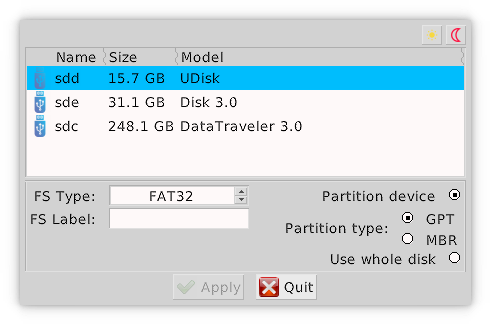 Application window (Light Mode)
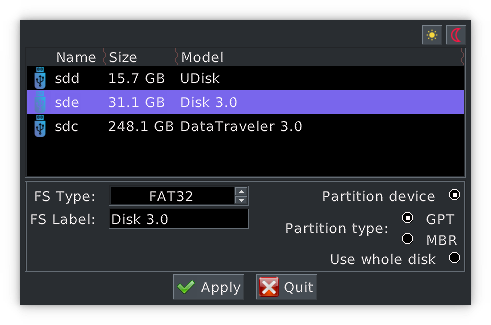 Application window (Dark Mode)
Device Selection
Upon launching Flashify, you'll see a device selection panel at the top of the window. This panel displays:- Device name
- Icon indicating device type (USB stick, SD card, HDD)
- Storage capacity in bytes
- Current mount points of device partitions
Important: Flashify automatically filters the device list to show only removable storage devices. This prevents accidental formatting of critical system drives. The application does not accept device names via command-line arguments.
Formatting Configuration
Below the device selector, you'll find the formatting parameters area where you can configure:- File System Type
Select from supported file systems including:
- FAT32
- exFAT
- NTFS
- ext2/ext3/ext4
- XFS
- BTRFS
- Partitioning Scheme
Choose one of three partitioning methods:
- Whole Disk - Formats the entire device without partition tables (not available for NTFS and ext2-4 file systems)
- MBR - Creates a Master Boot Record partition table
- GPT - Creates a GUID Partition Table
Starting the Formatting Process
Click the "Apply" button to begin the process after selecting your desired configuration.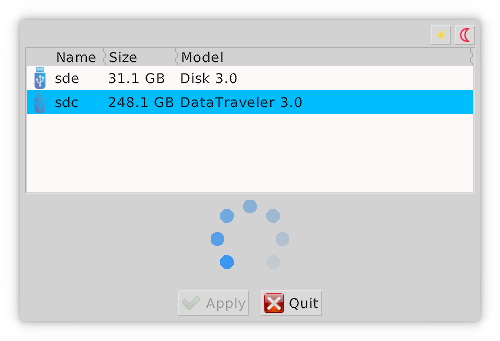 Running Format
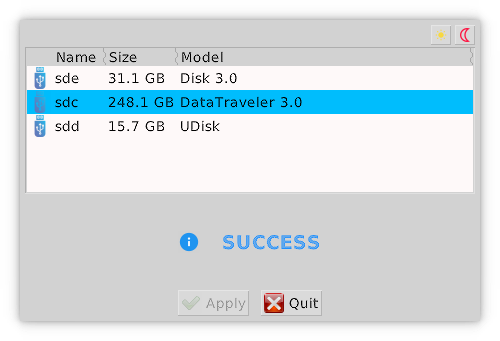 Formatting Successful
Authentication Methods
Formatting operations require administrative privileges. Flashify supports three authentication methods:Method 1: Run as Superuser
Launch Flashify from the terminal with elevated privileges:
sudo flashify
or
pkexec flashify
or
su -c "flashify"
Method 2: Passwordless sudo
If your user account has passwordless sudo privileges, Flashify will use sudo automatically without prompting for a password.Method 3: Polkit Authentication
If neither of the above conditions apply, Flashify uses pkexec (from the Polkit package) to request your password via a graphical authentication dialog.Formatting Process
Flashify focuses on simplicity and speed:- No advanced file system configuration options are provided
- No surface testing is performed
- Single-partition scheme is used when partitioning is selected
- Root permissions are set to 777 with uid=0 and gid=0 for file systems supporting permissions (XFS, BTRFS, ext2-4)
- Cleanup: For ext2-4 file systems, the lost+found directory is automatically removed from the root
The implementation created using libtau library